Rental: add what you rent and make your first order
How to create a rental item with its units and its prices by duration, and how to make a rental order with its period.
Updated Oct 22, 2026 · 3 min read
With the Rental module every unit you rent is under control: the panel knows which one is free on each date, which went out and which came back.
1. Add the item
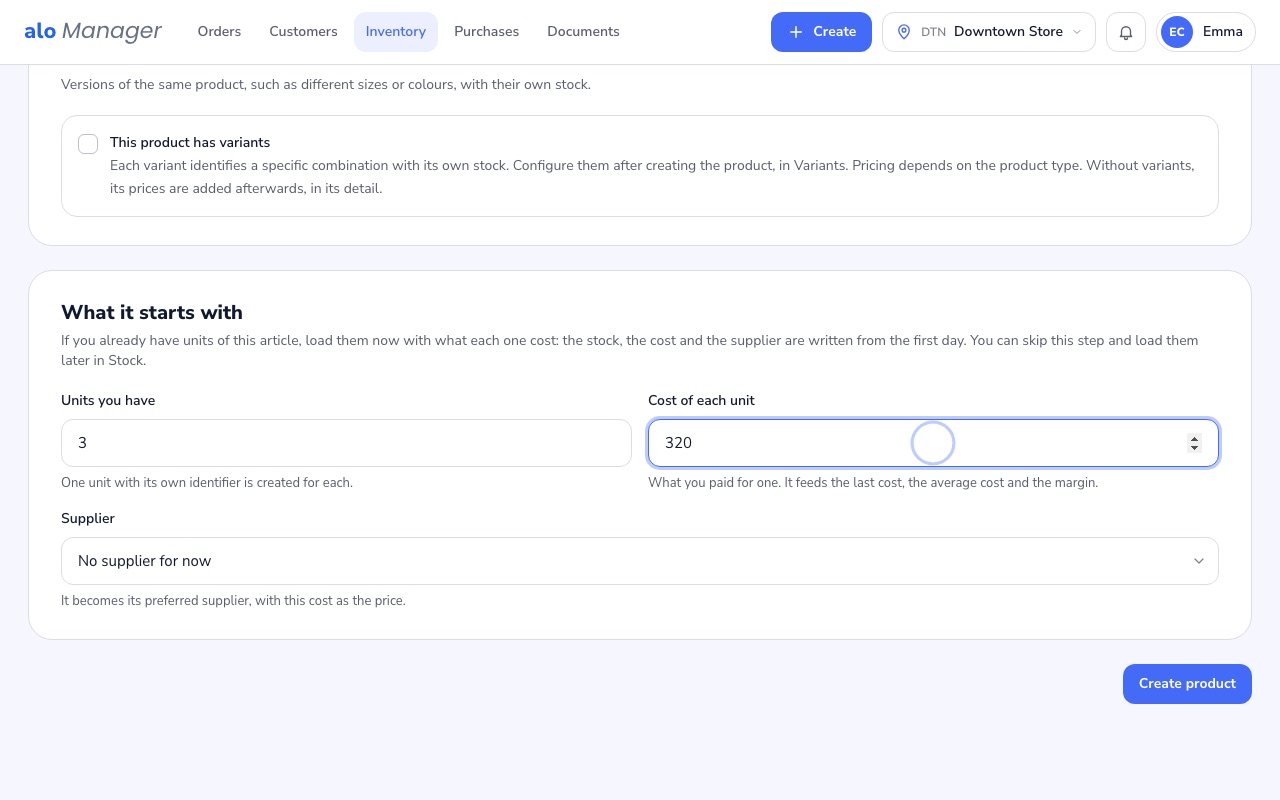
- 1Inventory › Add productChoose Rental item, type its name, how many units you have and what each one cost.
- 2Its unitsOnce saved, each unit has its code and its label to print.
2. Give it its prices
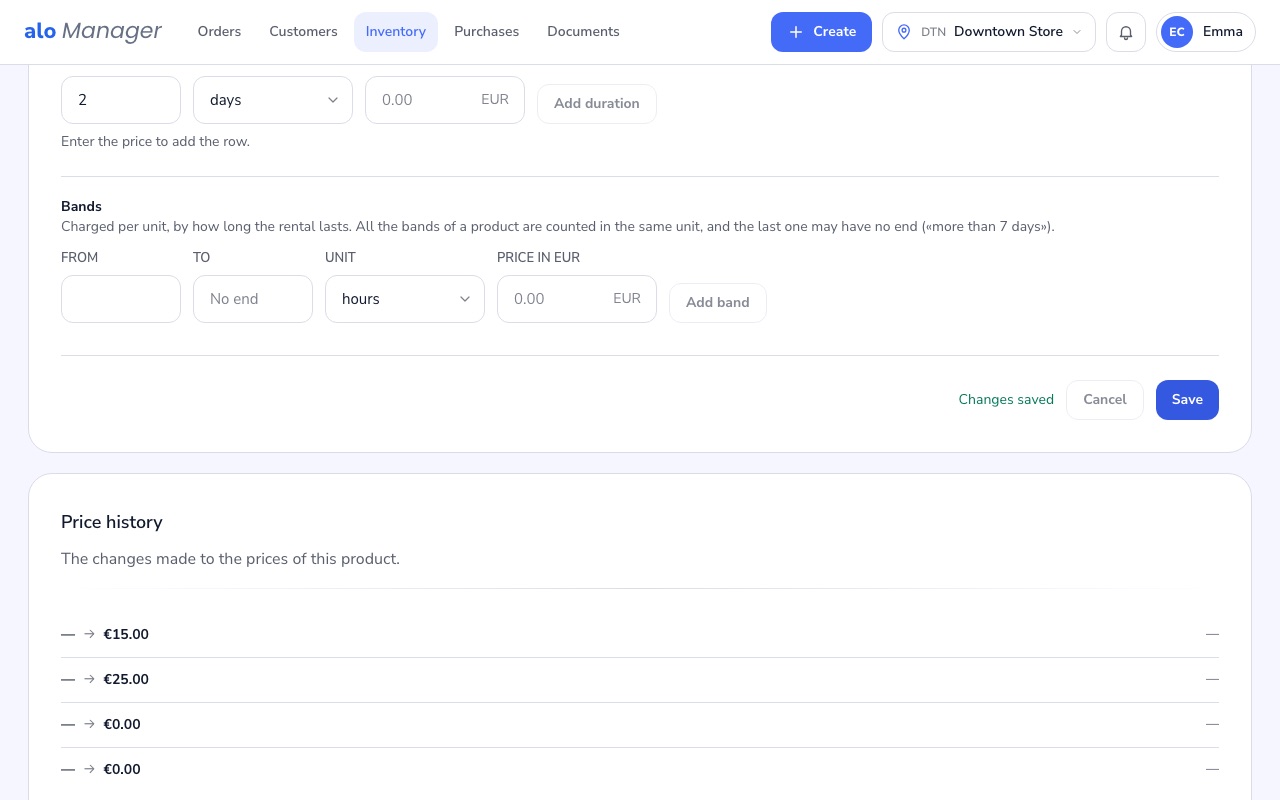
In the Prices tab you enter the price of each duration. The shortest duration that covers the rental is charged.
3. Make the order
- 1Create › Order › RentalChoose the customer.
- 2The periodPick the pickup day and the return day; the hours come from the store's schedule.
- 3The itemAdd it: the panel checks there are free units on those dates and assigns one.
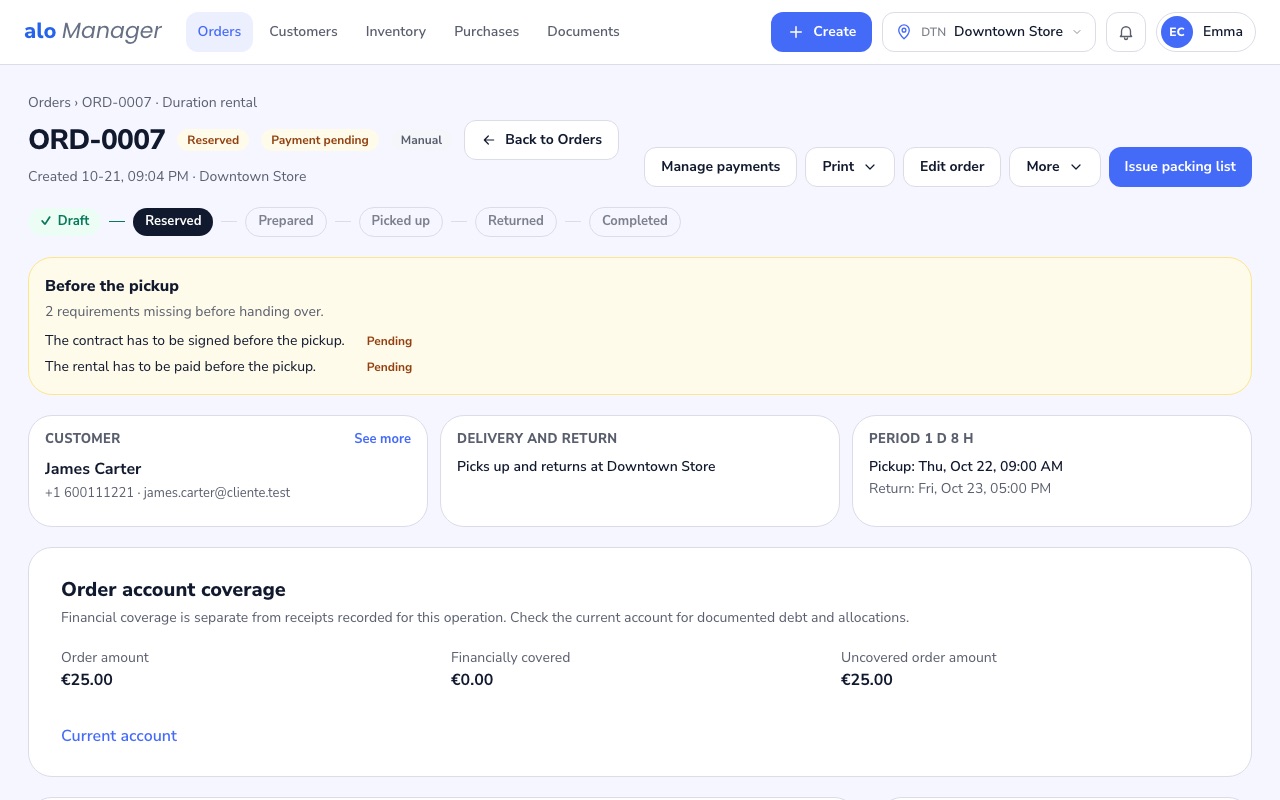
- 4Create orderThe unit is reserved and the order tells you what is missing before pickup, such as the signed contract or the payment.
Was this article helpful?